
All set to install QuickBooks Desktop on your system? Though the installation process might seem a bit daunting to many new users, carrying it out becomes easy with this guide right here. In this article, we will walk you through the complete download and installation procedure step by step. Before you begin, make sure that your computer meets the system requirements for QuickBooks Desktop. You should also have your product license and installation file on hand.
Make sure to stick around till the end to understand the full process.
Related Article: How to Setup QuickBooks first time?
What is QuickBooks Desktop?
QuickBooks Desktop is one of the finest accounting software that helps you manage your financial transactions, track expenses, create invoices, and generate reports, all in one place. QuickBooks Desktop is available in the following major editions:
- QuickBooks Desktop Pro Plus
- QuickBooks Desktop Premier Plus
- QuickBooks Desktop Enterprise
Every business can pick the most suitable edition according to its size and requirements. Each plan offers a different set of features and number of users.
Features of QuickBooks Desktop
- Search in Chart of Accounts — Search your accounts or sub-accounts by name, account number, or any partial words
- Customized Inventory Reports — Customize reports like inventory stock status by item, assembly shortage by item, and inventory valuation summary
- Add PO of a Customer in the Email Automatically — Automatically add PO to the subject line when sending emails to customers
- Smart Help — Press F1 to access the QuickBooks help center
- Past Due Stamps — Displays on screen when a customer invoice is past due
- Merge Vendor Records — Find and combine duplicate vendor records in a consolidated window
- Mobile Inventory Scanning — Scan inventory barcodes using a mobile device
- Payroll Liability and Payment Reminders — Get reminders for upcoming payroll liabilities and payments
- Multi-Monitor Support — Connect up to 3 monitors using the View menu
- Cash Toggle — Toggle reports between cash basis and accrual basis
- Expand or Collapse Columns — Collapse long report columns for a shorter view
- Update Email Security — Send emails securely from QuickBooks using Gmail, Outlook, or Windows Live
Steps to download the latest version of QuickBooks Desktop
To simply download QuickBooks into your system, perform the process to download the software completely.
- To start off with, head to the Download and Update page of Intuit, and get the download link for the version you want to download.
- For ProAdvisors: Login into your QuickBooks ProAdvisor Center to download your software.
- For Accountants: Log into CAMPs to download the software.
- You will have to choose your country, product, and version to initiate the download.
- Click on the Download tab.
- The installation file will start downloading. You will then have to save it in the location you wish to.
- And further, open the file explorer.
- Navigate to the download folder and look for the installation file with .exe extension.
Download QuickBooks Via CD
In order to download QuickBooks using CD, you can perform the steps below:
- The very first step is to insert QuickBooks CD into the CD drive.
- Furthermore, in case the installation process doesn’t start on its own, navigate to the CD drive on the system and double click the QuickBooks setup file.
- You will then have to perform the onscreen instructions to install QuickBooks. During the install process, you might be asked to agree to the license agreement and mention the location to save QuickBooks.
- After the installation is complete perform the onscreen instructions to activate QuickBooks and set up your company file.
- When the setup is complete, start using QuickBooks.
Read Also: How to Fix QuickBooks Error 6000, 301?
Deciding the type of Installation
The user generally having two options for installing QuickBooks: express, or custom and network.
Express Install- This type of installation is recommended in situations such as, first time user, reinstalling QuickBooks, using QuickBooks on a single system, etc. The steps involved in express install are as follows:
- First of all, the user must choose select the Express and Next option.
- And then, select Install option.
- And lastly, opt for Open QuickBooks.
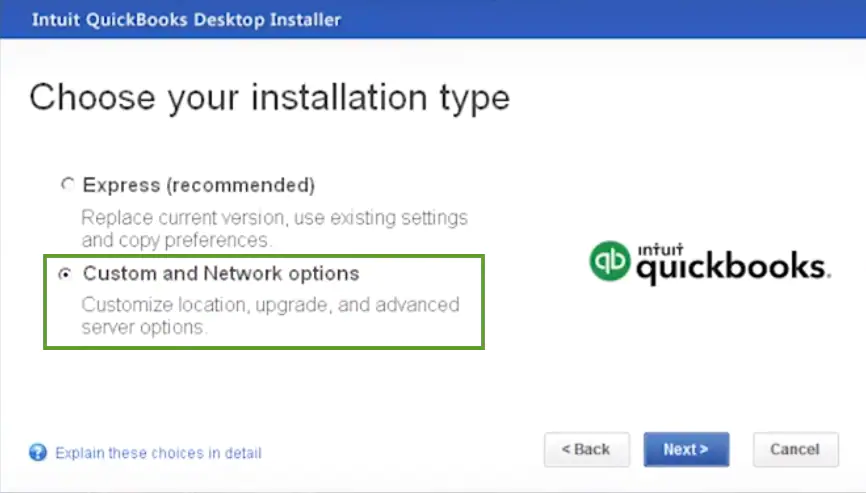
Customer and Network install: This type of install is recommended while installing QuickBooks somewhere other than the default location, or also when the user hosts the company files on a server, or for setting up a multi-user network.
The steps involved in custom or network install are as follows:
- To begin with, the user needs to select the Custom and Network options, and hit Next.
- After that, opt for the option that describes the way you will use QuickBooks.
- The next step is to select the change the install location option, on the next screen.
- Also, select Browse option to decide where to put the QuickBooks folder. Majority people put it in their Programs folder.
- And then, opt for the Next option to begin with the install process.
- Once the installation process gets finish, then click on the Open QuickBooks option.
You may also like: QuickBooks desktop enterprise setup and installation guide
Steps to Download and Install QuickBooks Desktop
Get the step-by-step instructions to install QuickBooks desktop on your system, make sure to follow the steps listed below:
Step 1: Prepare your computer
The first step is to prepare your computer for the installation. Make sure that your computer meets the system requirements for QuickBooks Desktop. You should also close any open programs or applications before you begin the installation process.
Step 2: Download or insert the installation CD
If you have a downloaded installation file, double-click on it to begin the installation process. If you have an installation CD, insert it into your computer and follow the prompts that appear.
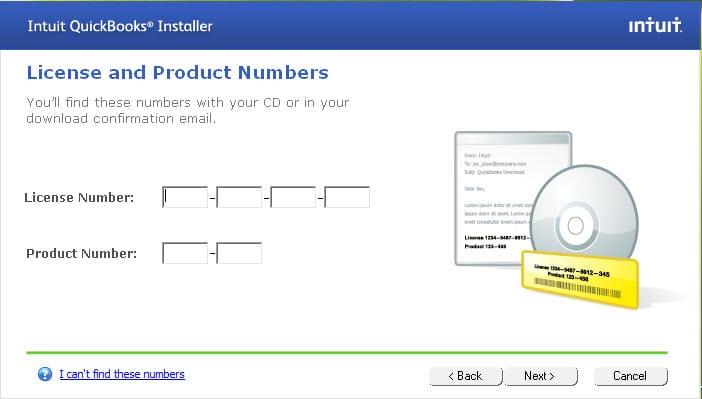
Step 3: Enter your product license information
Once you have started the installation process, you will be prompted to enter your product license information. This information can usually be found on the packaging of the software or in an email if you purchased the software online.
Step 4: Choose your installation type
Next, you will be asked to choose the type of installation that you want. You can choose to install the software on a single computer or on a network of computers. If you are installing the software on a network, you will need to make sure that you have the appropriate network settings.
Step 5: Customize your installation settings
In this step, you can choose to customize your installation settings. You can choose the location where you want to install the software, and you can also choose which components you want to install. If you are unsure, it is best to leave the default settings.
Step 6: Wait for the installation to complete
Once you have chosen your installation settings, the installation process will begin. The length of time that it takes to install QuickBooks Desktop will depend on the speed of your computer and the type of installation that you have chosen.
Step 7: Activate QuickBooks Desktop
After the installation is complete, you will need to activate QuickBooks Desktop. To do this, open the software and follow the prompts to enter your product information and activate the software.
See Also: How to Fix QuickBooks Error 6000 304?
Older Versions of QuickBooks – Discontinuation
In line with the Intuit’s discontinuation plan for older products, the user cannot register the discontinued product for the first time. However, it is possible to re-register the discontinued products, if they have been registered before and are being reinstalled.
See also: How to Fix QuickBooks Error H101, H202, H303 or H505?
Frequently Asked Questions
You can download the latest version from the official Intuit Downloads and Updates page at quickbooks.intuit.com. ProAdvisors can use the ProAdvisor Center and Accountants can use CAMPs.
No. You can install QuickBooks Desktop from a CD or a downloaded installer without an internet connection. However, you will need an internet connection to activate the software and access online features.
Express Install is for single-user setups or first-time installations. Custom and Network Install is for multi-user setups, server-hosted company files, or installations in a non-default location.
The installation typically takes between 15 and 30 minutes depending on your computer’s speed and the type of installation chosen.
Yes, but only if it was registered previously. Discontinued products cannot be registered for the first time.
Other Resources:
How to setup a new company file in QuickBooks?
How to fix network issues with QuickBooks File doctor test results?
Fix PS033 error: QuickBooks can’t read your payroll setup files

