
Switching from another accounting platform to QuickBooks doesn’t mean re-entering years of financial data by hand Intuit’s official QuickBooks Conversion Tool handles the heavy lifting for you. It supports migration from a range of programs, including Sage 50 and Quicken, and works across various QuickBooks Desktop versions like Pro, Premier, and Enterprise Solutions.
What makes this tool genuinely useful is that it preserves data integrity throughout the process your account balances, transaction history, and customer/vendor lists transfer over without compromising security. This guide covers everything: what the tool can and can’t convert, system requirements, how to download and use it, and step-by-step instructions for converting from both Sage 50 and Quicken. For direct help, our QuickBooks tech support team team is available at +1-888-510-9198.
Read this: How to Sign up for QuickBooks Online Account & troubleshoot any probable error?
What is QuickBooks Conversion Tool?
As we mentioned earlier, Intuit provides certain tools to users to make the work process easier. One such tool is the QuickBooks data conversion tool. This tool allows you to convert the company file from a variety of different programs. Using this tool, you can do things like conversion QuickBooks 2017 to QuickBooks Desktop Premier 2018 or Pro 2018 or QuickBooks desktop enterprise solutions 18.0.
What it can convert?
You can also conversion a bunch of other information like:
- Account, Employee, Item, Customer, and vendor lists
- Account balances
- Customer and vendor transactions
- Employee profile and contact info
- Payroll General ledger account balance info
- Paychecks (convert as journal entries)
You May also like this: 11 Most Common Payroll And Bookkeeping Mistakes You’re Probably Making
What can’t be converted?
- QuickBooks Payroll transactions and employee year-to-date info (paychecks, year-to-date adjustments).
- Work tickets
- Fixed Assets
- Individual employee wage or deduction information.
- Closed or partially closed Sales orders, Purchase orders, and Estimates.
System Requirements for the QuickBooks conversion tool
Keeping your system ready for the tool is essential to ensure that your tool works smoothly with your system. Here are a few system requirements, you need to check upon.
- Operating system: Windows 10, Windows 8.1, Windows 8
- Processor: 500 MHz Intel Pentium II
- Memory: 512 MB
- Hard drive: 2.5 GB free space.
- Microsoft .NET Framework: Version 2.0 is the least.
- QuickBooks Desktop: Pro, Premier, or Enterprise 2018.
- Sage 50: Version 2013 and above.
- OS should be either Windows 7, 8, or 10, or windows vista, or windows XP.
- Make sure to install .NET 2.0 framework.
- QuickBooks desktop should be registered and installed properly.
- RAM storage should be either 512 MB or higher.
See Also: How to Install or Uninstall the Plugins in QuickBooks?
Perks of QuickBooks Desktop Conversion Tool
QuickBooks conversion tool can be extremely helpful in the following terms:
- This particular tool permits the setup process for the QuickBooks file conversion.
- Another perk can be that the conversion tool doesn’t impact the data.
- Using a conversion tool is also helpful as this tool imports the data from the new QuickBooks company file.
- The tool further creates a log for every conversion, simply to maintain the records.
- It further offers a choice for the imports list. This helps to list plus/minus balances as well as historical transactions in one go.
- The tool ensures that no such data security compromises are possible at the time of conversion.
Steps to Download the QuickBooks Desktop Conversion Tool
The below set of steps can help in downloading the tool successfully. Let us have a look:
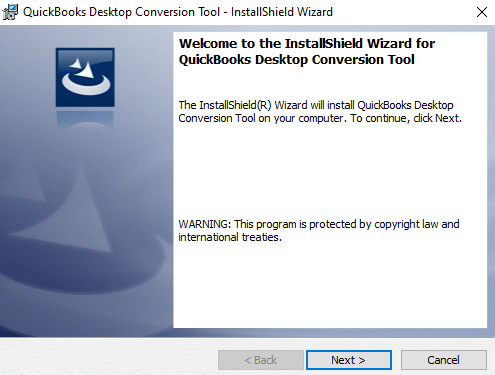
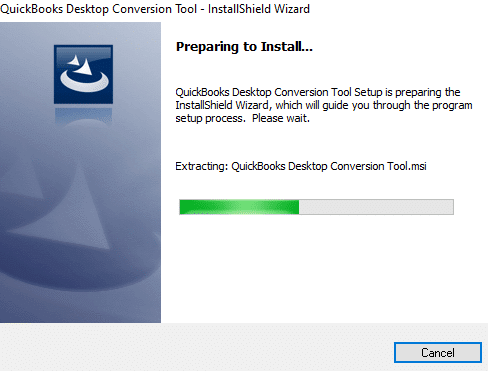
- Download QuickBooks Conversion Tool.
- Search for and open the folder having the downloaded file.
- After that, right-click on the QuickBooks conversion tool icon and choose properties.
- Under the compatibility mode, choose the checkbox for run this program compatibility, and then choose from the dropdown the window operating system being used.
- Click on ok tab.
- The last step is to right-click the file i.e. QuickBooks ConversionToolSetup.exe and also select run as admin.
What are the limitations of the QuickBooks conversion tool?
Even though the tool is full of features, there are certain limitations as well that you must be well versed with. These limitations are associated with importing data, transactions, and account balances from other financial software into QuickBooks. This would help in converting employee list information which includes the social security number, as well as payroll general ledger account balance information.
Note that, there is certain payroll information that can’t be transferred using the tool. This includes paycheck, employee year-to-date information, payroll item, individual employee wage, etc. Along with that, job costing, fixed asset items work tickets, and then close or partially closed sales orders, estimates, and purchase orders might not be converted with the help of a conversion tool.
See this also: How to Know About Intuit Field Service Management Setup & Support?
Steps to Use the QuickBooks Conversion Tool
Now that you have downloaded the tool, it is time to perform the necessary steps to use the conversion tool. Let us have a look:
- To make use of the QuickBooks conversion tool, you can try performing the below set of steps successfully. Let us have a look:
- The very first step is to double-click the conversion tool and open it.
- Now, choose one of the two options that would appear on the screen i.e. My Client Company or My own company.
- And go for the accounting software.
- Select next and choose the company file.
- Now, hit next again.
- Choose the QuickBooks product, head to the folder where you have saved the company file, and also hit next.
- Select the conversion levels as per the list that you see on the screen.
- Click on the next tab again.
- Choose the accounting preferences as per the date and name of the company, and then click on next.
- Check all the details for the last time and then click on start, and after the process is complete, you need to click on finish tab.
Steps to Convert from Sage 50 to QuickBooks Desktop
If you are looking for the steps to convert from Sage 50 to QuickBooks desktop, then the below set of steps would help.
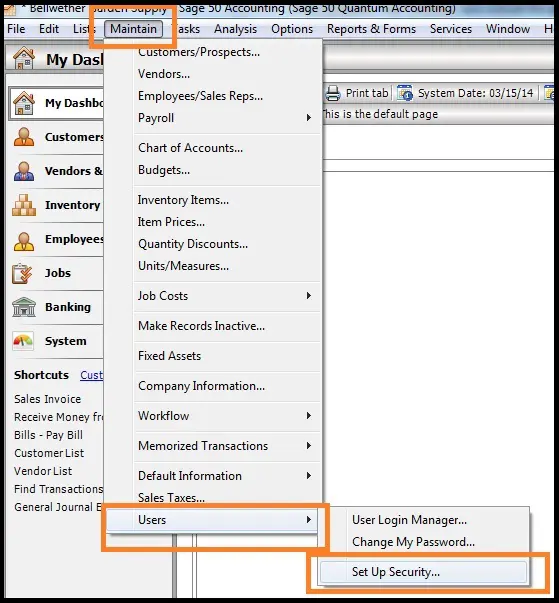
Step 1: Set up the data access credentials
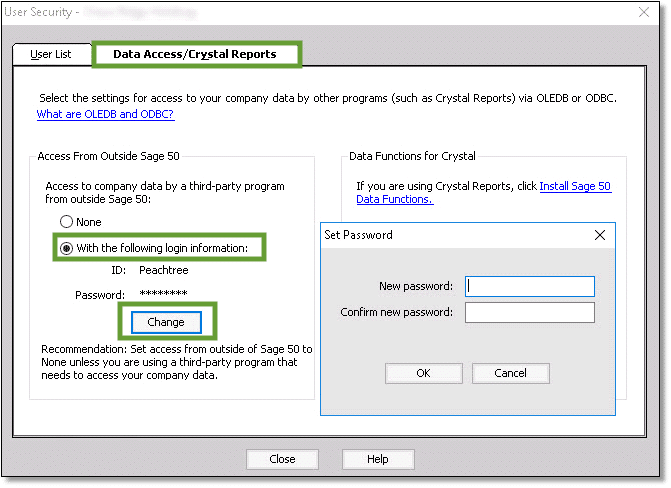
- Here, you need to launch the sage application.
- After that, open the company file.
- Head to the main menu and select maintain.
- After that, head to the users and setup security tab.
- Click on data access/crystal reports.
- Also, tap on change to set the password.
- Go for close Sage.
Step 2: Choose the Sage company file
- Here, you need to download the QuickBooks conversion tool from the Intuit website.
- And use the tool by running it as admin.
- Now, you need to right-click the QuickBooksConversionToolSetup.exe file and also go for the run as admin option.
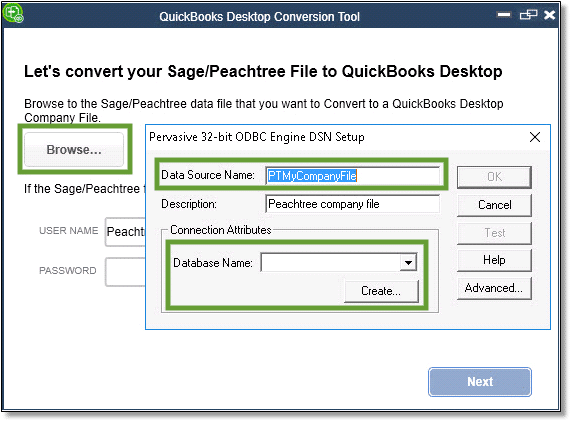
- After that, opt for the company file by clicking the browse option, from the database name window.
- And select the company name and click on OK tab.
You may also Like: How to Setup Online QuickBooks Bank Reconciliation: Process & Overview? [Guide]
Step 3: Convert the company file
- At first, choose the QuickBooks version to convert Sage to.
- Now, look for the folder, where the QuickBooks file is to be kept.
- After that, click on next.
- In the new window, verify the accuracy of the information.
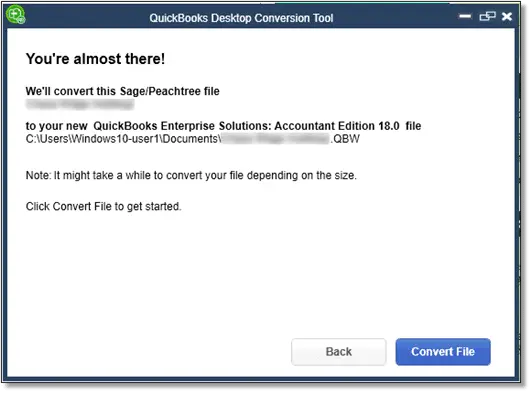
- After that, click on the convert file option.
- The process might take some time.
- Thus, wait for the message to appear prompting done.
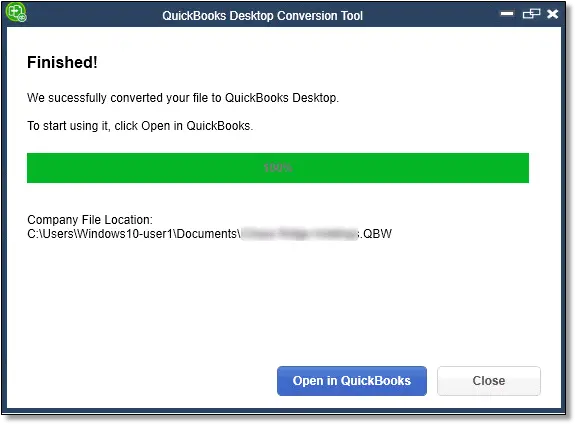
- Now, open the QuickBooks file and check for the process completion.
Step 4: Review the conversion
Once the tool performs the necessary steps, it is important to review the data and check if the transfer was a success. We can do this using the steps below:
- At first, open the windows start menu.
- Search for and open the file explorer.
- You are now required to head to the C:\USERS[Your Windows User Name]\My Documents\Intuit\QuickBooks.
- The last step here is to review the failed transaction log in the folder and check if the data is transferred or not.
Note that, you can only convert the versions of Sage 50 and QuickBooks desktop from the same region.
Steps to Convert from Quicken to QuickBooks Desktop
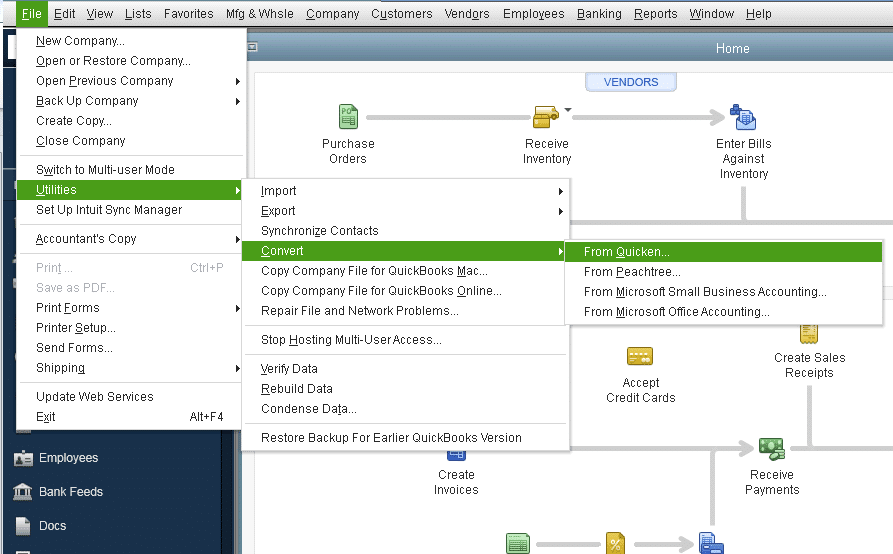
We can use the Conversion tool to convert from Quicken to QuickBooks easily. You can convert the Quicken 2011 or the earlier versions to QuickBooks using the steps below:
- The very first step is to download the QuickBooks conversion tool using the steps listed above.
- In case you are converting to QuickBooks of the same year from Quicken of the same year, then the tool is not needed.
- Now, launch the Quicken converter and then click on next tab.
- The User than needs to accept the terms in the license agreement.
- Also, click on next and install options.
- Choose launch quicken converter and click on finish tab.
- The user is now recommended to choose I am transferring data from Quicken to windows option and then go for the get started option.
- After that, click on open a data file located on this system option.
- Followed by, browsing the file by clicking on the select file tab.
- Click on the convert and OK tabs.
- And now, click on save to save the updated quicken file and also select the exit option.
- The Quicken file will not upgrade.
- The user will then have to launch the QuickBooks desktop.
- And move to the file and utilities tab. You will also have to opt for the convert and from Quicken. option.
- Perform the onscreen steps to conclude the process.
To Conclude!
Whether you’re migrating from Sage 50, Quicken, or simply moving between QuickBooks Desktop versions, the Conversion Tool genuinely simplifies what would otherwise be a tedious manual data-entry process. The one thing worth doing without fail is Step 4 reviewing the failed transaction log after conversion since this is your best indicator of whether everything transferred correctly or if something needs manual attention.If you run into any errors during the download, installation, or conversion process, or if you’d simply prefer to have it handled professionally, our certified team is available at +1-888-510-9198 to walk you through it or manage the entire conversion on your behalf.
FAQs Related to QuickBooks Conversion Tool
You can convert to Excel using the steps below:
1. Go to Reports
2. Search for and choose the report you want to export
3. At the top of the report, choose the export icon.
4. Select export to Excel
QuickBooks conversion tool lets you convert the company file from other programs. This further allows you to use QuickBooks files with software like Excel, word, and other third-party programs.
You might face issues in exporting from QuickBooks to Excel if there is a compatibility issue with the version of QuickBooks and Excel.
You can use a CSV (Comma Separated Values) file, Google Sheets, or an XLS/XLSX file to import information to QuickBooks Online.
No, this is an important limitation to keep in mind. The guide specifically notes that you can only convert between versions of Sage 50 and QuickBooks Desktop that belong to the same region for example, US Sage 50 data can only be converted to US QuickBooks Desktop. Attempting to convert across regions (such as UK Sage 50 to US QuickBooks) isn’t supported by this tool and may result in incomplete or incorrect data transfer.
The tool transfers account balances and most transaction history, but reconciliation status specifically isn’t guaranteed to carry over cleanly across every supported program, since each platform tracks reconciliation differently internally. After completing a conversion, it’s a good practice to review your bank reconciliation reports in QuickBooks against your original source data to confirm everything matches, and re-reconcile if needed.
Yes, absolutely while the conversion tool is designed to preserve data integrity and doesn’t modify your original source file, it’s always best practice to create a backup of your original company file (whether in Sage 50, Quicken, or QuickBooks) before starting any conversion process. This gives you a safe fallback in case the conversion encounters issues or certain data doesn’t transfer as expected, without risking your original records.
Other Related Articles:
How to Fix QuickBooks Update Error Code 1328?
How to Fix QuickBooks Company File Incorrect Password Error?