
Maintaining a healthy relationship with your clients means handling returns, overpayments, or discount adjustments smoothly. In QuickBooks, a Credit Memo is the ultimate tool to manage these scenarios without messing up your accounts. Whether a customer is returning defective inventory, disputing an overcharge, or utilizing a goodwill gesture, issuing a credit memo reduces their open balance safely and ensures your sales tax and income statements stay 100% accurate.
Confused about how to properly allocate customer credits? Simply creating a credit memo isn’t enough if it isn’t linked correctly to an open invoice or mapped to the right accounts receivable line, it can lead to distorted revenue statements, unresolved customer balances, and massive reconciliation errors during tax season. If you want a quick, seamless setup or need to clean up an older, messy ledger, let our certified professionals handle it for you securely. Call our QuickBooks Enterprise Support Desk right now at +1-888-510-9198, and we will help you with your doubts immediately.
Also Read: How to print voucher checks in QuickBooks Online?
What is the difference between QuickBooks credit memos and delayed credits?
QuickBooks lets you give credit using a credit memo or delayed credit. However, there are a few key differences that we have jotted down. Let us evaluate:
Credit memo in QuickBooks
- A credit memo can be used in case your customer wants to immediately reduce their current open balance.
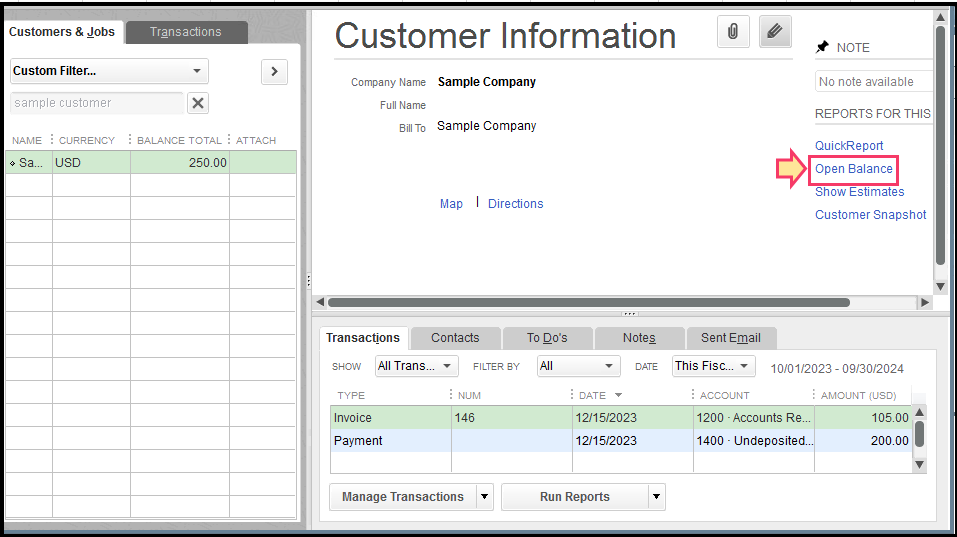
- It can also be used as payment for an invoice by the customer. Either they can use all of their credit memos or a portion of it.
- A credit memo can be applied when recording payment for a customer’s invoice.
- Note that, credit memos impact sales reports, even if you do not apply them to the invoices.
Delayed Credit in QuickBooks
- In case you wish to track a customer’s credit for future use, and they do not want it to instantly affect their current open balance, then using a delayed credit might help.
- The customer can use their delayed credit to reduce the balance of an invoice.
- One can add delayed credits to future invoices as a line item.
- Delayed credits do not impact sales reports until you apply them to invoices.
Steps to create and apply a QuickBooks credit memo
In order to create and apply a credit memo, you can try performing the steps enumerated below:
Step 1: Turn on or turn off automatically apply credits
- Begin with heading to the Settings tab
- Choose Account and settings
- You now have to choose the advanced tab
- Once done with that, choose the edit tab in the automation section
- Also, turn on automatically apply credits, in case you wish to automatically apply credits to customer balances or open invoices.
- After that, turn if off in case you wish to make a decision that open invoices you want to apply credit memos to.
- The last step is to choose Save and click on Done.
Related Blog: Create an invoice in QuickBooks Online
Case 1: Automatically apply credits setting is on
Simply turn on auto-apply credits, to automatically apply credits to the oldest open invoices for the same customer. In case it is on, here is what happens:
- In case you have older open invoices, QuickBooks will apply the credit to the oldest open invoice. If none, QuickBooks will apply the credit to the next invoice.
- Just in case the credit matches the amount on the invoice, the credit memo and invoice will show Closed. In case the credit is less than the amount of the invoice, the credit memo will show as closed, and the invoice will depict partial.
- Also, if the credit is more than the amount of the oldest open invoice, QuickBooks applies the remainder to the next oldest open invoice. In case there is no more open invoices, then the status of the credit memo will show unapplied
- In case you create credit and the customer owes nothing, then they will have a negative balance.
Case 2: If the automatically apply credits setting is off
If you create a lot of invoices and credit memos for customers, then you need to turn off auto-apply credits. Just in case you apply specific credit memos to specific invoices, then here is what happens if it is off:
- When you enter a credit, QuickBooks won’t apply it to any open invoices.
- Moreover, when you receive a customer payment using receive payment, then it has a credits section. Choose when to apply credits and to which invoices.
- In case you don’t link any credits, the customer balance detail report will show that both the invoice and the credit memo have open balances. They further show as open or customer and sales transaction pages.
Remove auto-applied credits from an invoice
- Here you need to choose an invoice that has the credits applied
- After that, choose the blue hyperlink of the credit applied, and then choose the date.
- The payment transaction will open.
- The next step is to choose more and then delete. Also, choose yes to confirm.
In case you want to transfer credit from one customer to another, create a journal entry, then apply the credit.
Step 2: Credit a credit memo
- The very first step is to choose +New
- Then, choose the credit memo
- From the customer dropdown, you need to choose customer’s name
- Also, enter the credit memo details, such as the date and the amount.
- Note that, you can create a custom credit service item so that you can quickly add it to credit memos as a single line item.
- After you are done, choose save and close.
Step 3: Apply the QuickBooks credit memos to an invoice
Just in case you turn on the auto-apply credits, QuickBooks will apply the credit for you. And in case you turn it off, you can manually apply a credit memo to an invoice.
- Begin with, choose + New
- After that, choose Receive payment
- Select the customer from the customer dropdown.
- You now have to choose the open invoice you wish to apply the credit memo to in the outstanding transactions section
- In credits section, choose the credit memos you wish to apply
- Also, note that, if you do not see the credits section, in case you haven’t created the credit memo.
- Enter the credit you want to apply for the open invoice in the payment column.
- Now, leave the payment method, reference no, deposit to, and the amount received fields blank.
- Also, enter in the rest of the details including the payment date.
- Ensure that the total is correct after applying the credit memo.
- The last step is to choose save and close.
Steps to create and apply a delayed credit
For creating and applying a delayed credit, the steps enumerated below can be implemented.
Step 1: Create a delayed credit
- To begin with, you need to choose + New
- After that, choose delayed credit
- Now, from the customer dropdown, choose the customer’s name
- And then, enter the details, such as the date and the amount
- Note that, you can create a custom credit service item, so you can quickly add it to the delayed credits as a single line item
- The last step is to choose save and close.
This saves the delayed credit and you can opt for apply it the next time you create an invoice in QuickBooks.
Step 2: Apply delayed credit to an invoice
Adding a delayed credit to an invoice from a prior accounting period will affect that period’s balances.
- You need to choose + New
- And then go for the invoice
- After that, in the customer dropdown, choose the customer.
- This opens a window with all open transactions for the customer and further includes invoices and delayed credits.
- Also, note that, if you do not see this, choose the small arrow next to the invoice balance due.
- Once done with that, find the delayed credit and choose add.
- This adds the credit as a line item to the invoice
- Now, fill in the rest of the details.
- And choose save and close.
Credit memo customization
Any sort of customizations applied to the standard template will be applied by the credit memo. Thus, in order to customize a credit memo, you need to edit the standard template according to the requirements.
Also Read: Reconcile an account in QuickBooks
Conclusion!
Correctly utilizing QuickBooks Credit Memos allows you to keep track of customer adjustments while ensuring your Accounts Receivable balances remain completely clean. Whether you choose to apply the credit directly to an existing open invoice, retain it on the customer’s profile for future transactions, or convert it into a direct cash refund check, following a structured workflow keeps your business reporting accurate and professional.
However, recording multi-tier customer credit situations such as partial returns on tax-exempt jobs, adjusting discounts across multiple jobs, or fixing old closed-period transactions can quickly cause balances to go out of sync if not handled carefully. If your customer statement is showing incorrect open negative figures, or you are struggling with a tricky adjustment, save your valuable time. Connect directly with our elite QuickBooks Support Experts at +1-888-510-9198. Our certified ProAdvisors are available 24/7 to audit transaction histories, resolve linking mismatches, and ensure your financial books remain perfectly audit-ready.
Frequently Asked Questions!
A Credit Memo is used when a customer has an open balance or wants to keep the money as a credit on their account for future purchases. A Refund Receipt is utilized when you are immediately returning cash, a check, or processing a credit card reversal directly back to the customer on the spot.
This usually happens if the Credit Memo was accidentally created under a different customer name or a separate “Job” profile. QuickBooks requires the credit and the open invoice to be under the exact same Customer/Job dropdown hierarchy to link them successfully.
Yes. If you use inventory tracking features in QuickBooks Desktop, entering an inventory item line into a Credit Memo automatically updates your stock counts and re-adjusts your Cost of Goods Sold (COGS) balances behind the scenes.
Navigate to the specific customer’s register, find the applied credit memo, click on History, select the invoice linkage, and clear the checkmark. To avoid breaking your financial logs or matching feeds accidentally, feel free to call our helpline at +1-888-510-9198 for guided assistance.
Other Related Articles:
Adding a User License to your QuickBooks Software
QuickBooks cannot communicate with the company file – [Fixed]